
Open a bucket and add a Game Builder view. With no game yet, you have three ways in — and you can always change everything afterwards.
Three ways to start
Start from a preset
The fastest path. Pick one of the seven presets — a fully-wired board you tweak from there. Habit Loop for a daily routine, Life Board for a bounded journey, Quest Board for a branching campaign, and so on.
Describe it to the AI
Type a prompt — "a 30-day fitness board using real gyms" — and the generator drafts a board. You review and tweak it before it saves; the AI proposes, you approve. See the AI generator.
Create a blank game
Start from an empty canvas and add spaces yourself from the palette.
You can also fork any board from the Discover tab (/games/discover) — 20
curated templates spanning all seven presets.
The workspace
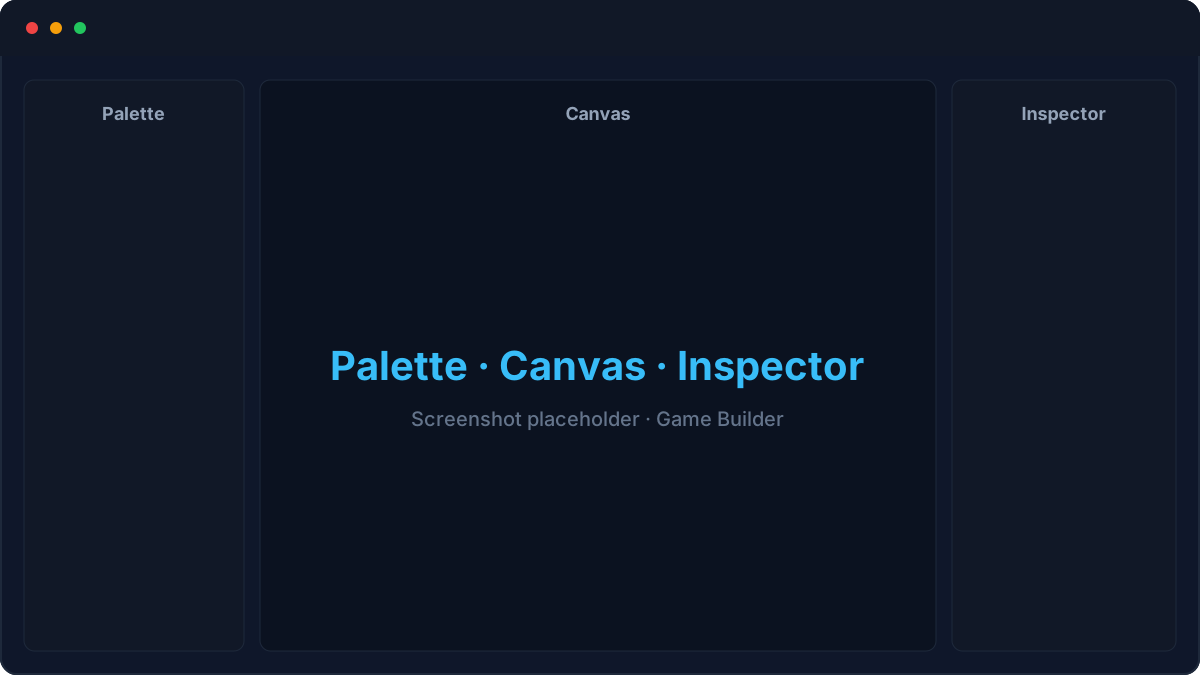
Three panes, Elementor-style:
- Palette (left) — space types grouped by category, plus presets and the AI prompt. Drag a space onto the board.
- Canvas (centre) — the board itself. The renderer follows the board shape (linear track, grid, ring, hex map, real map, branching graph). Click a space to select it.
- Inspector (right) — configure the selected space. It opens on a single When → Do → Then pane; the full tabs are behind Advanced.
The gear button opens settings (Rules, Economy, Pieces, and the board theme); the Edit / Play toggle switches modes.
Your first game in five steps
todo space and set its todoId to a real bucket todo.Completing a linked todo fires its space everywhere it's referenced across your boards, but XP is awarded once (first-board-wins by default). See Playing.